Doing a few experiments with VMware ESX 3.5 today, I've made a typo (twice!) when setting up a password for one of the systems, and this resulted in me locking myself out of ESX server upon the completion of its install.
Luckily, there's a rather easy way to change the forgotten password to something new, and I thought I'll explain how it can be done.
Changing the root password on ESX server
You will need to have access to the serial console of the server which has your ESX installation, or access to keyboard and display attached directly to the same box.
To change the password, we'll follow this procedure:
1) Reboot ESX server.
Unfortunately, if you don't remember your root password, there won't be a clean way to reboot your server. Try to shutdown all the VMs running on it, and then power-cycle the box running ESX.
2) Boot ESX server in single user mode
In this mode, you won't be asked for a root password. When you see the following screen, press the "a" key:
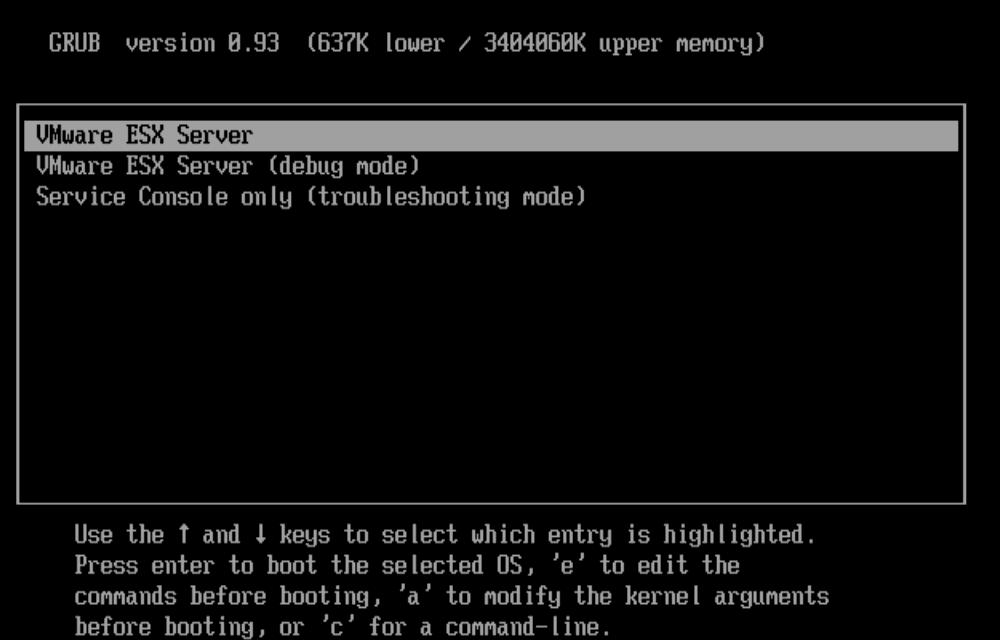
… to change ESX kernel boot parameters. Your screen will look like this:

Now, simply type a space and "single" word, then press Enter:

Eventually, your ESX server will boot and give you a root command line prompt, which means you can do what you want from this moment on:
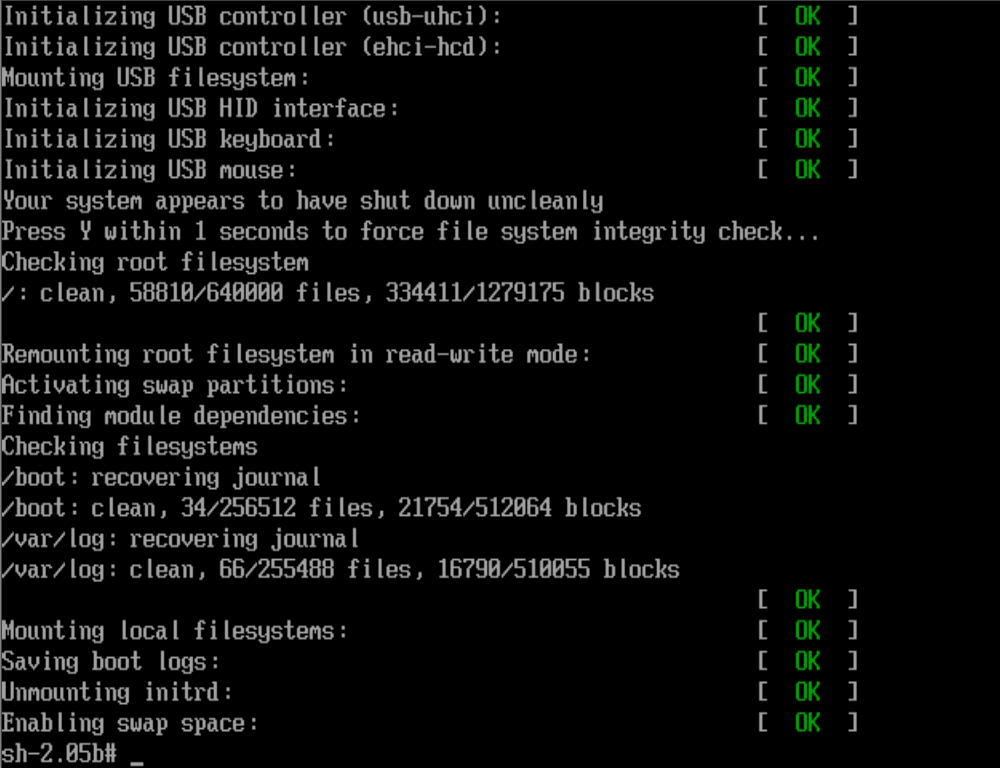
Assuming you want to change your root password, move on to the next step.
3) Change ESX root password to a new one
Simply type "passwd" and give your new password twice:
sh-2.05b# passwd
Changing password for user root.
New UNIX password:
Retype new UNIX password:
passwd: all authentication tokens updated successfully.
That's it! You have changed the ESX password! Now it's time to reboot the system and allow ESX server to come back up online.
4) Reboot ESX server once again
Type "reboot" and wait for the ESX server to come back online in a few minutes:
sh-2.05# reboot
Are you a seasoned ESX administrator? Do you solve the forgotten root password problem differently? Please share your opinions in the comments section.
HI!
THANKS A LOT ! Works like charm!!!!
One thing I found to be true when entering "single" mode in reference to this step
… to change ESX kernel boot parameters. Your screen will look like this:
If there is any text after mem-272 make sure you back the cursor to
mem-272M _
It took me a while to figure that out. It doesn't work if you type in 'single' at the end of the line. I had to erase everything up to mem-272M
Thanks, BK!
I haven't played with this, so it's very good that you've spotted the importance of command line wording.